My customizations to i3
Originally published on the old blog: https://tomauger.gitlab.io/posts/2020/2020-02-23-my_customizations_i3/.
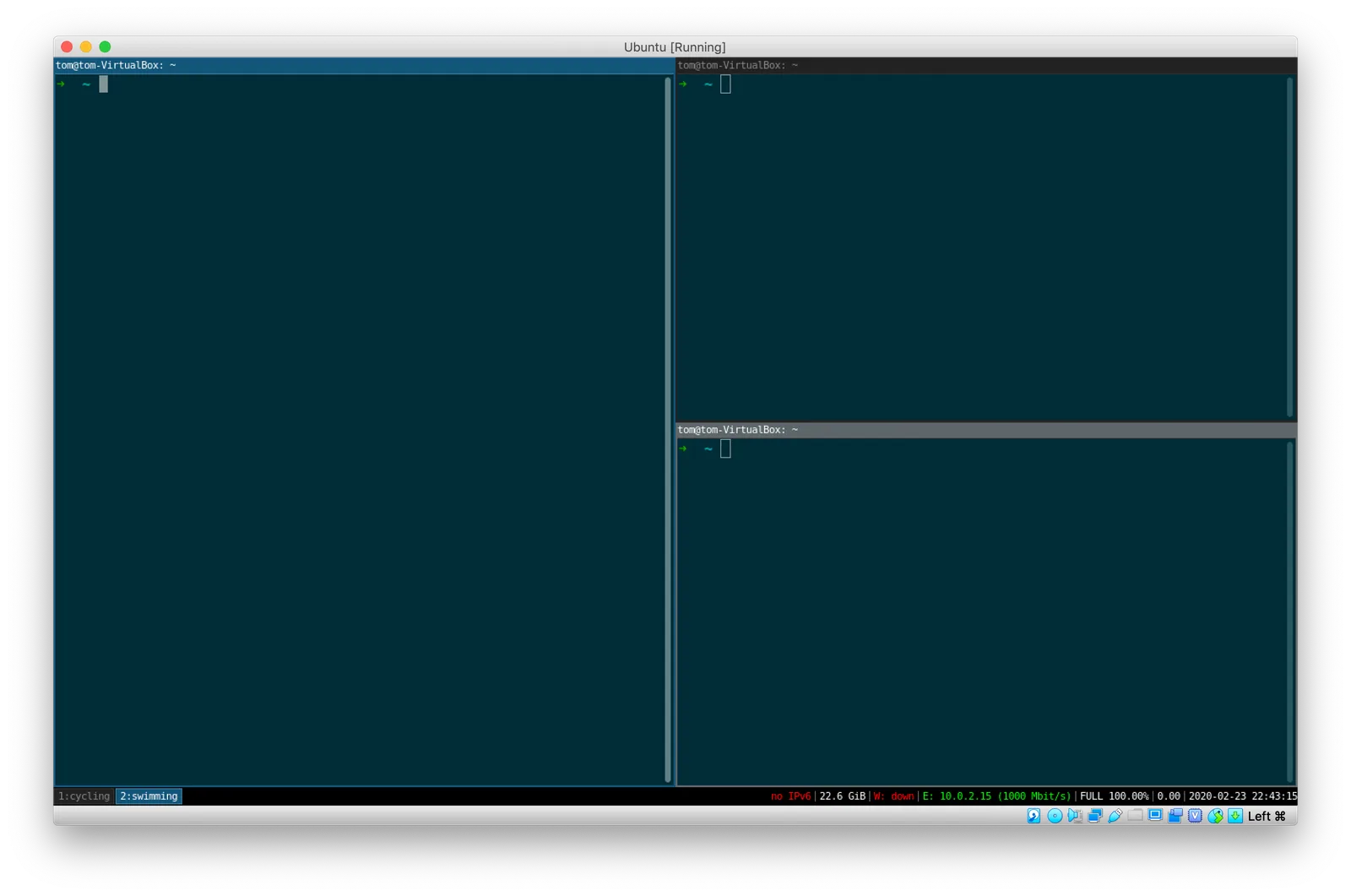
i3 is a tiling window manager for Linux/BSD targeted at advanced users and developers. The interface is clean and minimal but that belies the powerful configuration and extensibility underneath.
I primarily use Linux for software development at work, so it’s important for me to have a desktop environment that’s optimized to my workflow. Here I describe my setup and customizations, and maybe they will inspire others to set up their linux desktop environment to be more productive and enjoyable.
Install i3
On Debian/Ubuntu simply run:
sudo apt install i3For other distros see the complete installation instructions.
Customizations
Out of the box i3 comes with a default configuration file ~/.config/i3/config that defines keybindings and macros. The documentation is excellent and covers a large number of scenarios in depth. Here I will only cover the customizations that I have changed/extended from the defaults.
Using the num pad to change workspaces
By default $mod+1, $mod+2, … ,$mod+9 will create and switch between workspaces. On a full sized keyboard it is also helpful to use the num pad.
To add bindings for the num pad keys append the following to your i3 config file:
# Add keybindings for the numpad

# Switching workspaces
bindsym $mod+Mod2+KP_1 workspace number 1
bindsym $mod+Mod2+KP_2 workspace number 2
bindsym $mod+Mod2+KP_3 workspace number 3
bindsym $mod+Mod2+KP_4 workspace number 4
bindsym $mod+Mod2+KP_5 workspace number 5
bindsym $mod+Mod2+KP_6 workspace number 6
bindsym $mod+Mod2+KP_7 workspace number 7
bindsym $mod+Mod2+KP_8 workspace number 8
bindsym $mod+Mod2+KP_9 workspace number 9
bindsym $mod+Mod2+KP_0 workspace number 10

# Moving windows between workspaces
bindsym $mod+Shift+Mod2+KP_End    move container to workspace number 1; workspace number 1
bindsym $mod+Shift+Mod2+KP_Down   move container to workspace number 2; workspace number 2
bindsym $mod+Shift+Mod2+KP_Next   move container to workspace number 3; workspace number 3
bindsym $mod+Shift+Mod2+KP_Left   move container to workspace number 4; workspace number 4
bindsym $mod+Shift+Mod2+KP_Begin  move container to workspace number 5; workspace number 5
bindsym $mod+Shift+Mod2+KP_Right  move container to workspace number 6; workspace number 6
bindsym $mod+Shift+Mod2+KP_Home   move container to workspace number 7; workspace number 7
bindsym $mod+Shift+Mod2+KP_Up     move container to workspace number 8; workspace number 8
bindsym $mod+Shift+Mod2+KP_Prior  move container to workspace number 9; workspace number 9
bindsym $mod+Shift+Mod2+KP_Insert move container to workspace number 10; workspace number 10
Lock the screen with a black background
By default the i3 desktop will stay up all the time. The i3lock command can be used to lock the screen when you’re away from your desk. There are many customizations but I use a simple black background so it looks like my monitors are switched off. Unfortunately after excluding the default keybindings there aren’t many left which involve the L key, so I bound it to $mod+Shift+p, which is obscure enough not to hit by accident and perhaps vaguely memorable with the mnemonic ‘pause’?
# lock the screen with a black background
bindsym $mod+Shift+p exec "i3lock -c 000000"
Rename workspaces
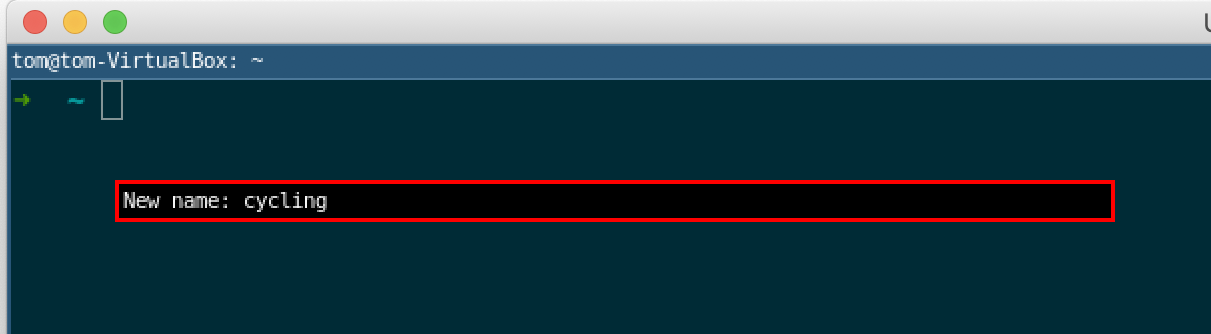
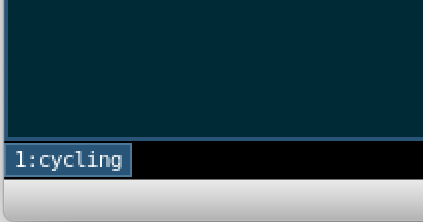
When you accumulate many workspaces it’s helpful to add a tag to their name so you remember what’s on them. This is easy to achieve with the i3-input command. When I press $mod+r an input box pops up prompting for a name which is then appended to the workspace number. I also added a ‘clear’ command to clear the workspace name, although in practice I don’t tend to use it and simply discard workspaces once I’ve finished with them.
Before using this macro you need to have jq the command line JSON parser installed:
sudo apt install jqThen add the following to your i3 config file:
# rename workspaces
bindsym $mod+r exec i3-input -F "rename workspace to "$(i3-msg -t get_workspaces | jq -r "map(select(.focused))[0].num"):%s"" -P "New name: "
# clear workspace name
bindsym $mod+c exec i3-msg "rename workspace to "$(i3-msg -t get_workspaces | jq -r "map(select(.focused))[0].num")""
Note by default $mod+r maps to resize mode. I changed this to map to $mod+z instead.
Toggle which monitor a window appears on
When you have a dual monitor setup it’s helpful to have a single shortcut to move a window from one monitor to the other. I’ve bound this to $mod+x:
# toggle workspace monitor
bindsym $mod+x move workspace to output right
Enable auto back and forth
Often I want to peek at something on one workspace and then switch back to the one I was working on. This can be made easier by enabling a rule that says when you try to switch to the workspace that’s currently active, you are taken to the last workspace that you came from. For example, suppose you are on workspace 1 and want to peek at what’s on workspace 2. You press $mod+2 to move to workspace 2 and once finished press $mod+2 again to switch back to workspace 1. This means you don’t have to remember which workspace you were on before which is handy once you accumulate several workspaces.
# Enable auto back and forth
workspace_auto_back_and_forth yes
Custom status bar
The default status bar has many of useful widgets, but it’s helpful to remove the ones that are redundant and add some that are more useful. The status bar is configured in a separate config file: ~/.config/i3status/config. The config for the default status bar is located in /etc/i3status.conf. See the extensive documentation for details on all the available widgets and how to customize them.


Conclusion
That’s all for now. Check out the i3 documentation for more shortcuts and optimizations.
If you have any more useful tips for i3 please share them!